Caption anything
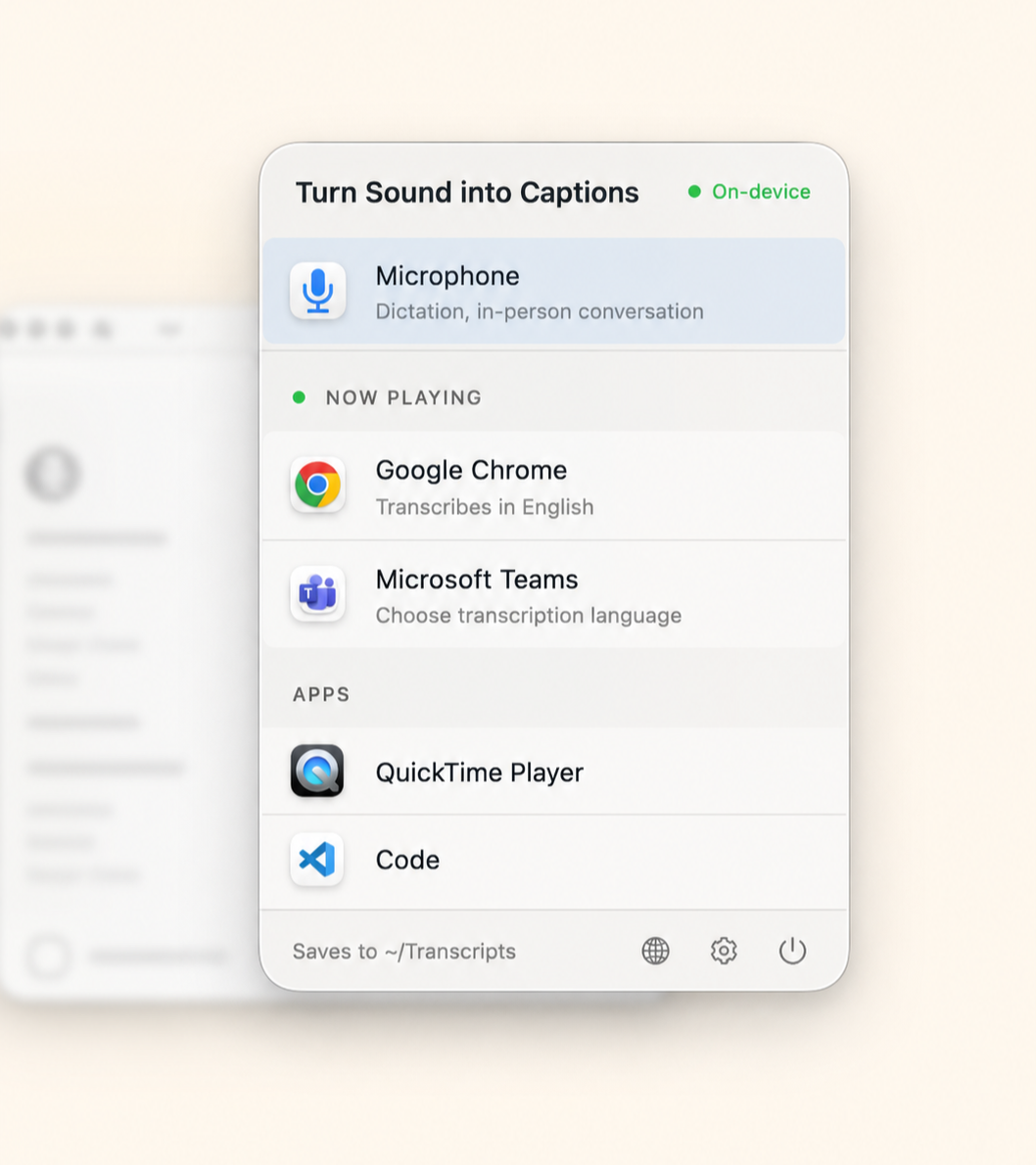
Pick any running app — a browser, a video player, a conference call — or your microphone. Each session captures only the source you explicitly choose.
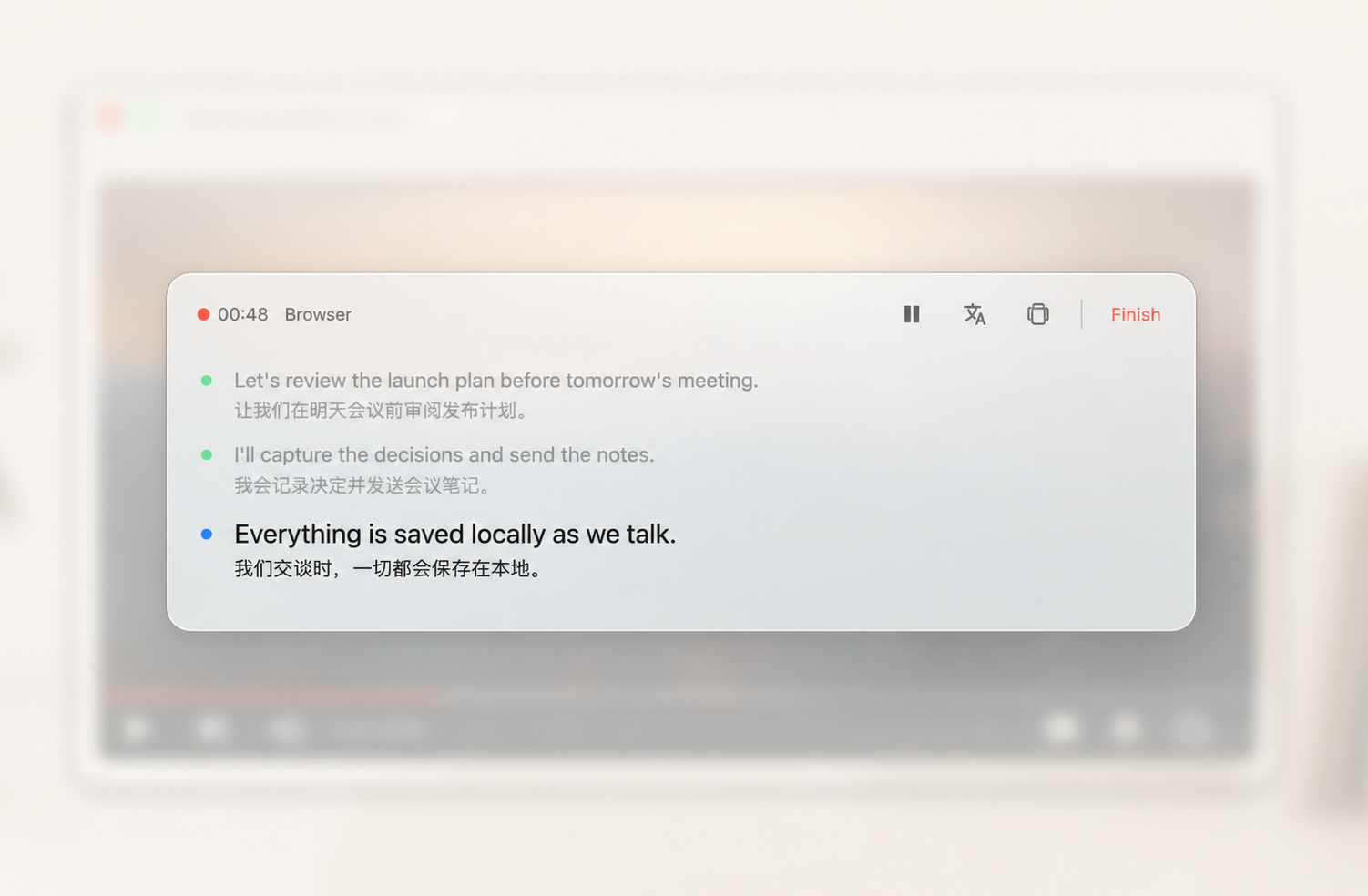
CaptionBar floats a lyrics-style caption bar over your screen and transcribes what you hear — a meeting, a lecture, a video, a call — as it happens, entirely on your Mac. If the audio isn't in your language, a live translation appears right under each line.
Pick any running app — a browser, a video player, a conference call — or your microphone. Each session captures only the source you explicitly choose.
A translation appears beneath each caption as it lands, powered entirely by Apple's on-device translation engine — no cloud, no account.
Each session writes to a clean Markdown file the moment it starts. There's no export step to forget — timestamps, speaker labels, and bookmarks land as they happen.
Before the first session, choose a normal Finder folder. Transcripts and optional recordings stay visible, portable, and under your control.
Phrases like "action item," "TODO," or "decision" are flagged inline as they're spoken, in English and Chinese.
Lives in your menu bar — no Dock icon, no window clutter. Press ⌥Space to summon it anywhere; controls only appear on hover.
There's no export button, because there's nothing to export. From the first spoken word, CaptionBar writes a Markdown transcript straight to the Finder folder you chose. If you explicitly turn on audio recording, a matching 16kHz recording is saved there too. Your folder is the history view: browse it in Finder, Spotlight, or Obsidian.
# 2026-07-14 0930 Zoom

*Generated July 14, 2026 at 9:30:05 AM*

[09:31:15] [app] We're behind on the container migration — what's the status?
[09:31:32] [app] The deployment went smoothly, no major issues on UAT.
[bookmark] trigger: "action item"
Same folder, same basename
Press ⌥ Space
A global hotkey opens the source picker instantly, from any app — no need to hunt for a menu-bar icon first.
Pick a source
Choose Microphone or one running app. CaptionBar requests only the permission needed for that source.
Choose your folder once
Before the first session, a standard macOS panel asks where to save. Cancel it and nothing starts or gets created.
Captions appear
A red recording indicator and timer stay visible. The transcript writes to your chosen folder; audio is saved only if you opted in.
Nothing leaves your Mac
Speech recognition and translation run on Apple's own on-device frameworks. There is no server in the loop.
No account, ever
No sign-up, no login, no tracking. Open the app and it works.
You own the files
Transcripts are plain files in the folder you choose. Audio recording is off by default and saved there only when you enable it.
Coming soon to the App Store.
Download on the App StoremacOS 26+ · Apple Silicon · ~15MB of storage per hour of optional audio